

Add a road style
- Web
- Available
- iOS
- Available
- Android
- Not yet
This guide creates a road style — the reusable look roads are drawn with — and saves it to your catalog. For how styles and roads work together, see Roads.
Before you start: on the web, sign in to your account. In the iOS and Android apps you can also follow along without one — styles stay on the device until you sign in. Pick your platform below. The rest of the page remembers your choice.
Add a road style
Section titled “Add a road style”-
In the dashboard, open Roads.
-
Click Create Style. The Road Style Builder opens on the Layers tab.
-
Click Add Layer and choose Black Outline, then click Add Layer again and choose Asphalt Fill. Layers draw one beneath another, bottom first, so the outline frames the fill. Select a layer to set its colour, width, opacity, dash pattern, and line cap and join.
-
Open Properties and type a Name — the only required field. Description, Category, Surface Type, Speed Limit, Accessibility, Sharing and Tags describe the style for searching and filtering; the defaults are fine to keep.
-
Optional: to start over from a ready-made look, open Templates and click Highway Standard, Urban Street or Country Road. This replaces the layers and properties you have so far.
-
Click Save. The style is in your catalog, ready to draw with.
-
Tap Roads in the bottom menu.
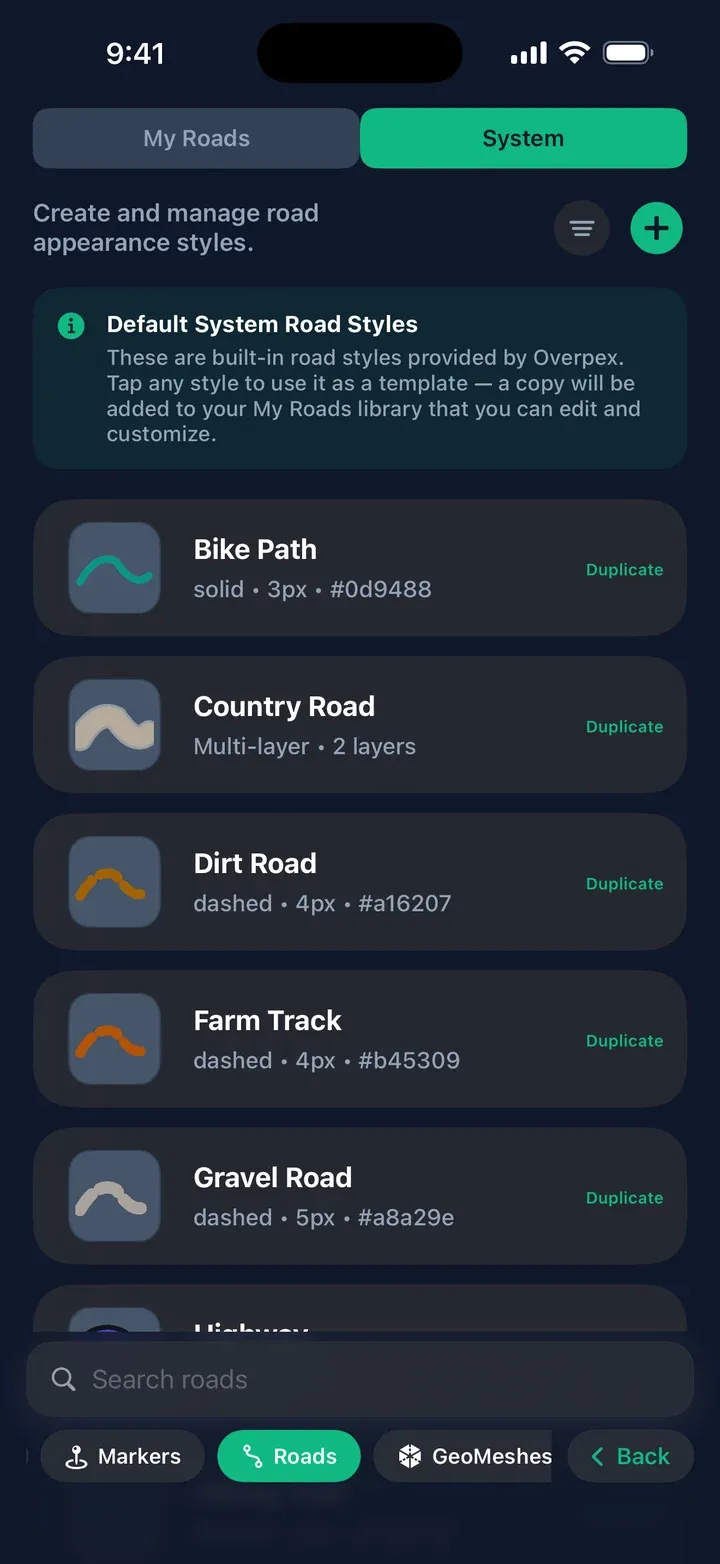
With no styles of your own yet, the screen opens on the System tab. Yours live under My Roads.
-
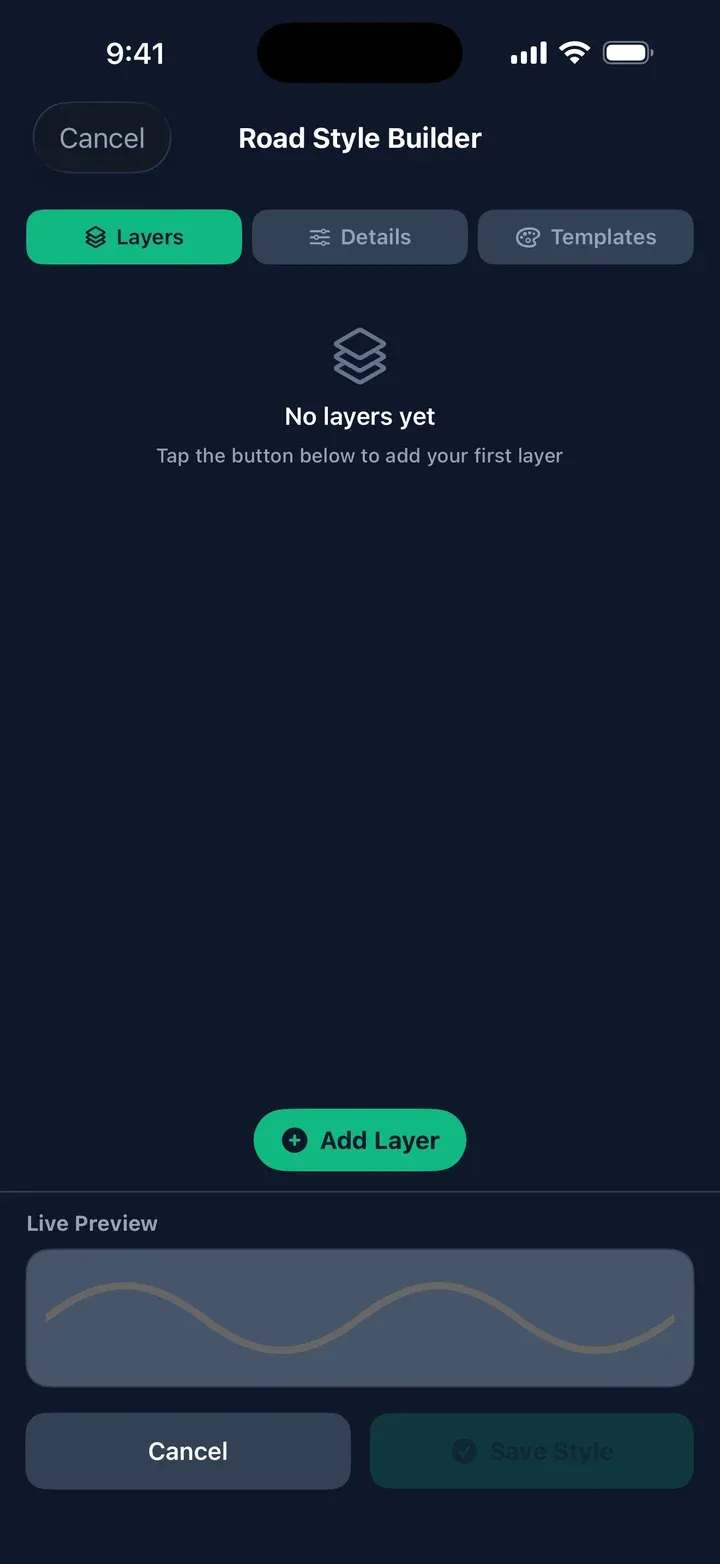
Tap +. The Road Style Builder opens on the Layers tab.
-
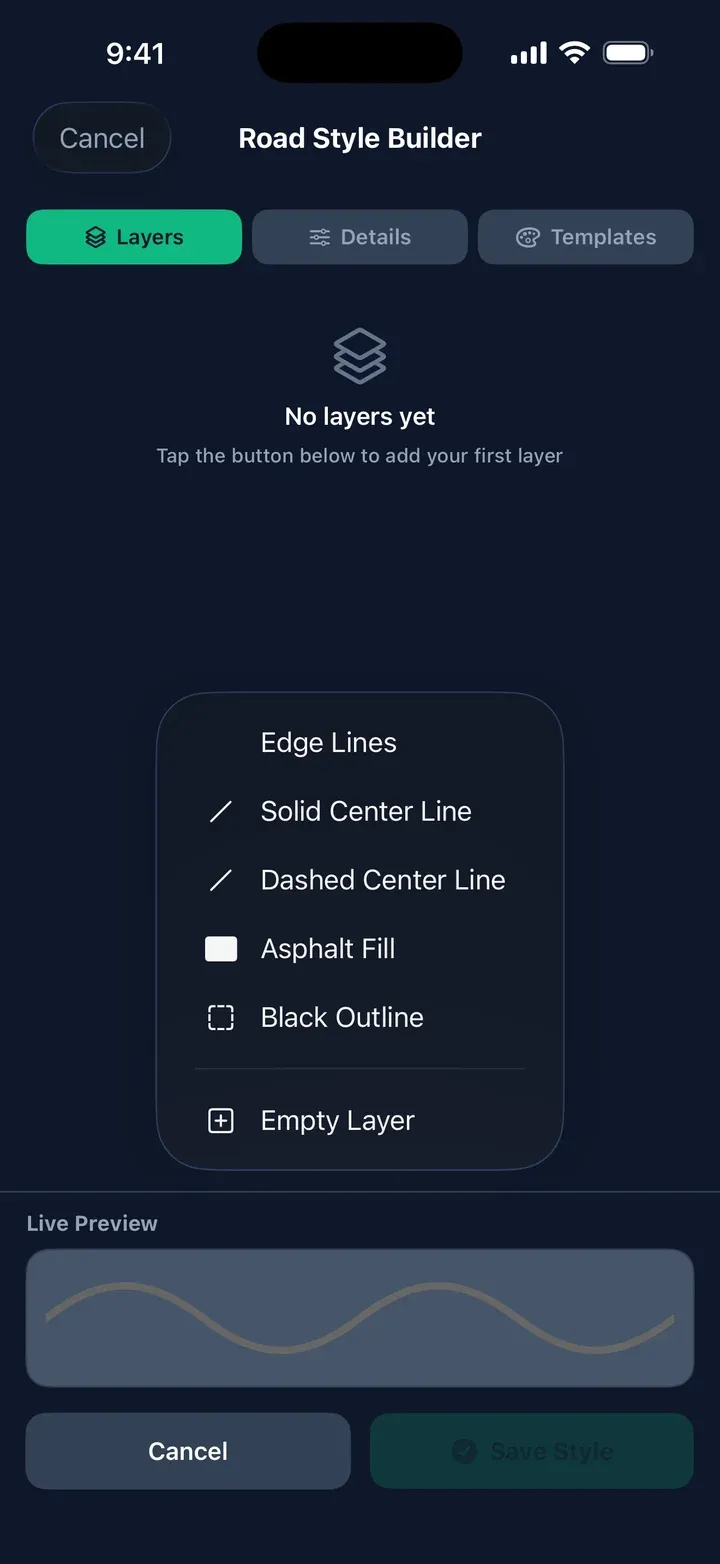
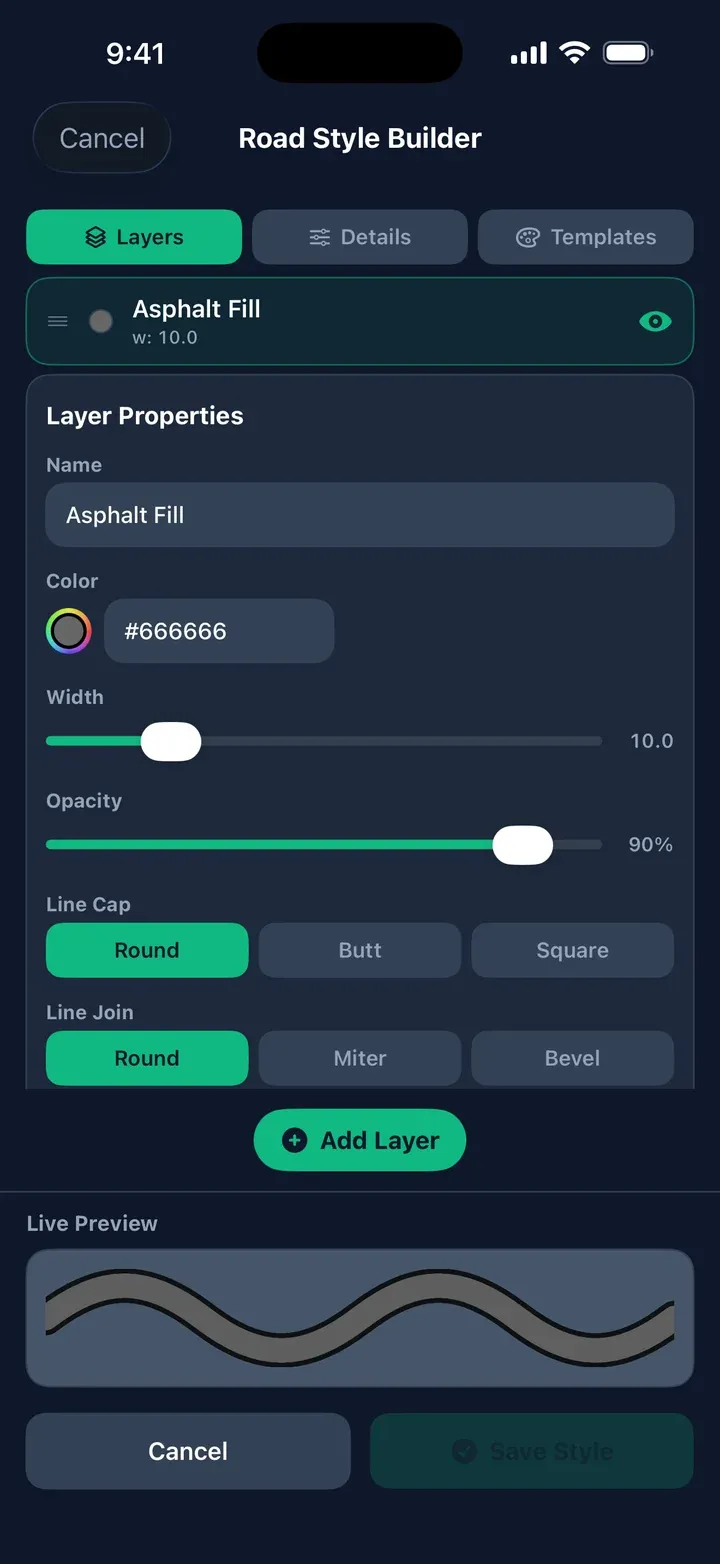
Tap Add Layer and choose Black Outline, then tap Add Layer again and choose Asphalt Fill. Layers draw one beneath another, bottom first, so the outline frames the fill. Each new layer opens its properties: name, colour, width, opacity, dash pattern, and line cap and join. The Live Preview strip at the bottom shows the road taking shape.
-
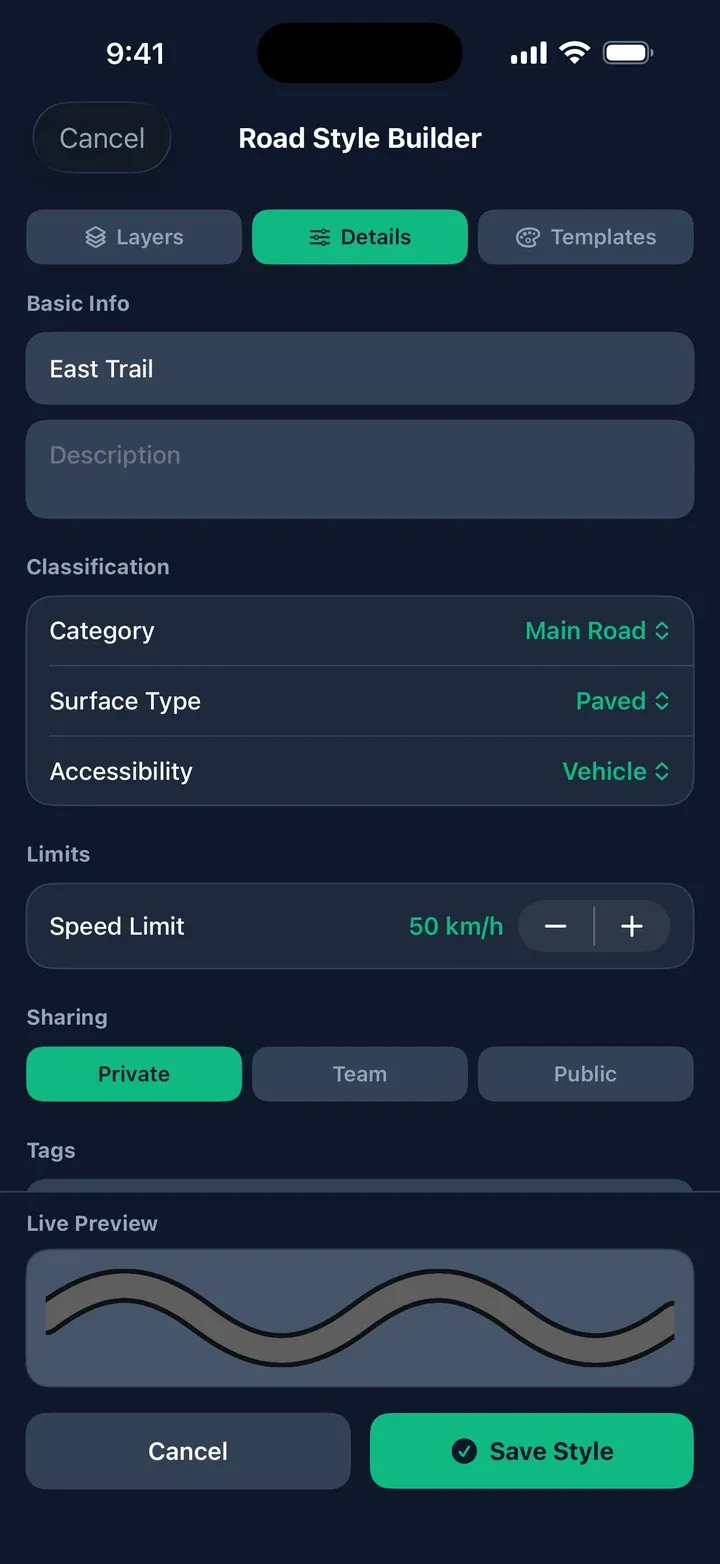
Tap Details and type a Name — the only required field. Category, Surface Type, Accessibility, Speed Limit, Sharing and Tags describe the style for searching and filtering; the defaults are fine to keep.
-
Optional: to start over from a ready-made look, open Templates, tap Highway Standard, Urban Street or Country Road, then tap Apply Template. This replaces the layers and properties you have so far.
-
Tap Save Style. The style lands in My Roads, even if you started from the System tab.
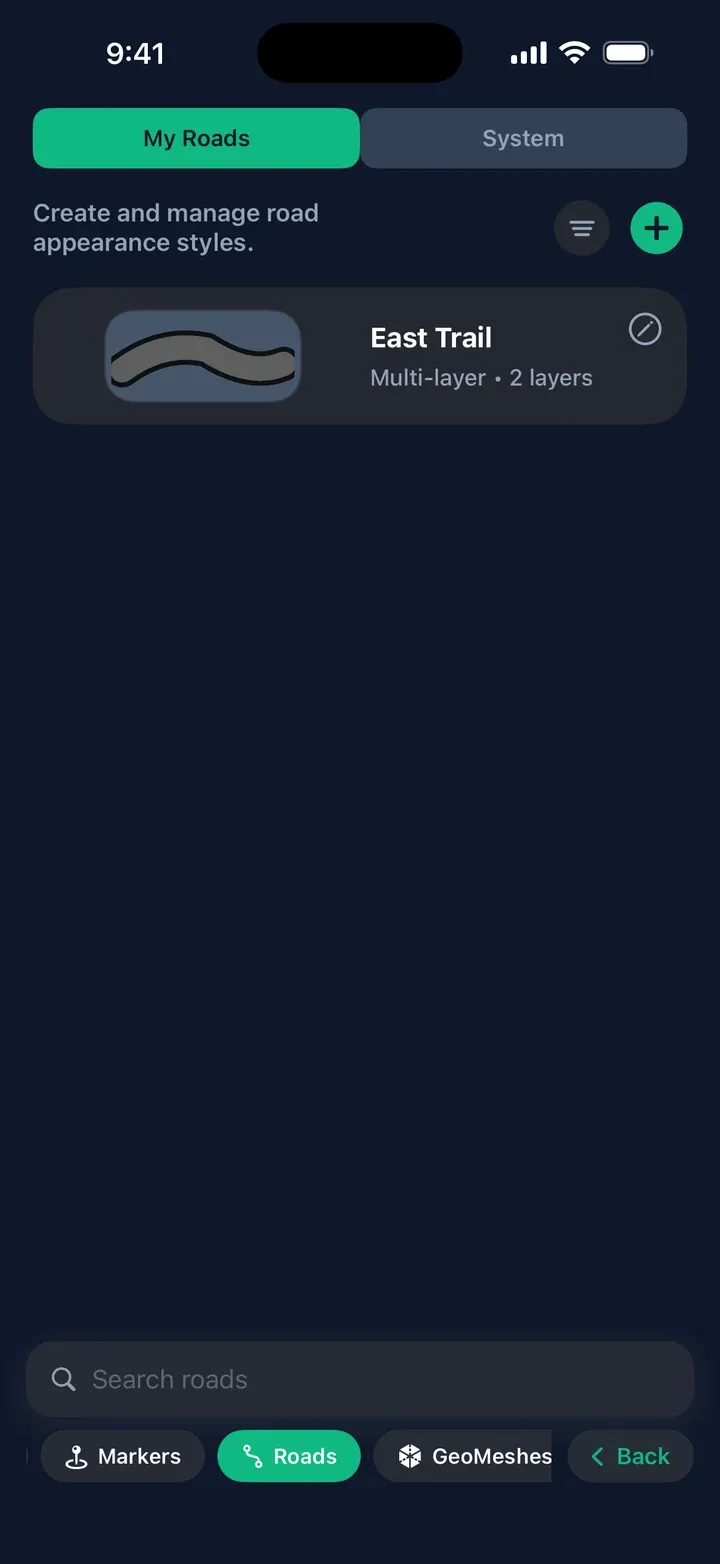
Tap a style in My Roads and then the pencil button to edit, copy or delete it. Deleting asks first, and can’t be undone.
-
Tap Roads in the bottom menu.
With no styles of your own yet, the screen opens on the System tab. Yours live under My Roads.
-
Tap +. The Road Style Builder opens on the Layers tab.
-
Tap Add Layer and choose Black Outline, then tap Add Layer again and choose Asphalt Fill. Layers draw one beneath another, bottom first, so the outline frames the fill. Tap a layer to set its colour, width, opacity, dash pattern, and line cap and join.
-
Open Details and type a Name — the only required field. Category, Surface Type, Accessibility, Speed Limit, Sharing and Tags describe the style for searching and filtering; the defaults are fine to keep.
-
Optional: to start over from a ready-made look, open Templates, tap Highway Standard, Urban Street or Country Road, then tap Apply Template.
-
Tap Save Style. The style lands in My Roads.