

Roads
- Web
- Available
- iOS
- Available
- Android
- Not yet
A road is a line you draw on the map where people and vehicles actually travel: the driveway, a farm track, a trail through the woods. What a road looks like comes from a road style — a reusable preset kept in a catalog, not attached to any one map. Every road drawn with the same style looks the same, and changing the style updates all of them at once. A style can be a single line or a stack of layers, like a black outline under an asphalt fill with a dashed centre line.
What a road style is made of
Section titled “What a road style is made of”| Part | What it does |
|---|---|
| Layers | The strokes drawn one beneath another, bottom first. Each layer has a colour, width, opacity, dash pattern, and line cap and join. A style needs at least one layer; most look best as two or three — an outline under a fill, a centre line over it. |
| Name | Required. It shows in the catalog and in the style picker when you draw or edit a road. |
| Details | Description, category (highway, main, secondary or local road, path, or other), surface type, accessibility, speed limit and tags. These describe the style for searching and filtering; they don’t change how it draws. |
| Sharing | Private, team or public — who can see and use the style. A new style starts private. |
A new style starts empty, and the builder shows a live preview as you put it together. To start from something ready-made, add a layer preset — Black Outline, Asphalt Fill, Dashed Center Line, Solid Center Line or Edge Lines — or apply a whole template: Highway Standard, Urban Street or Country Road. Applying a template replaces the layers and details you have so far.
Drawing a road
Section titled “Drawing a road”- Start the Road tool in the map editor and pick a style for the road.
- Place points by tapping or clicking along the line. Two points make a road; add as many as the bends need. Undo and Redo take back or restore a point, and Snap lines new points up with roads and markers already on the map.
- Finish the road to save it: tap Finish Road, or on the web click the last point again.
You can choose the style while you draw or change it later by selecting the road in the editor. Because roads point at their style rather than copying it, restyling a style updates every road that uses it — open maps re-render straight away.
The road style catalog
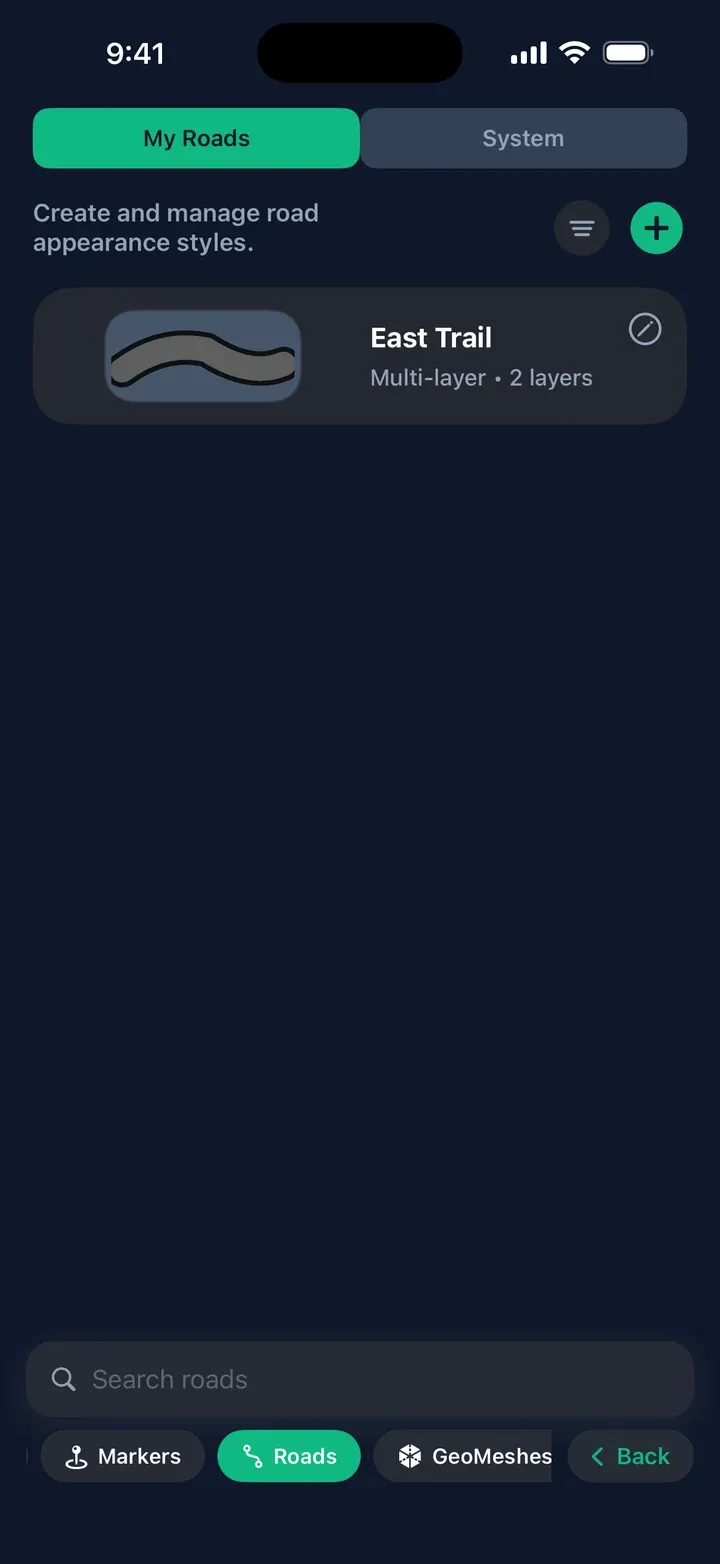
Section titled “The road style catalog”The Roads screen is the catalog. It has two tabs:
- My Roads — styles you made or copied. Tap a card’s pencil button to edit it, copy it or delete it. Deleting asks first, and can’t be undone.
- System — Overpex’s built-in styles. They are read-only; tap one to add an editable copy to My Roads.
A style you save is available to every map you work on. Styles shared as team or public are usable by the people those levels allow, and roads on shared maps keep their style for viewers.
Saving and syncing
Section titled “Saving and syncing”On the web, changes save straight to your account. In the iOS and Android apps, a new or changed style is saved on your device first, so you can work with no connection, and uploads when you are back online. In the apps you can also make styles without an account: they stay on the device until you sign in, then move into your account.
Differences between platforms
Section titled “Differences between platforms”Only rows where the platforms differ, and only verified behaviour.
| Web | iOS | Android | |
|---|---|---|---|
| Open the catalog | The Roads page in the dashboard | Roads in the bottom menu | Roads in the bottom menu |
| Create or edit a style | Create Style and Edit Style, in the Road Style Builder | + and the card’s pencil button, in the Road Style Builder | Browse only |
| Builder tabs | Layers, Properties, Templates | Layers, Details, Templates | — |
| System style catalog | — | System tab, ships with the app | System tab, filled by the first refresh |
| Start from a system style | — | Tap it, then Add Copy to My Roads | — |
| Duplicate a style | Duplicate — the copy is named “… - Copy” | Copy — the copy is named “… Copy” | — |
| Finish drawing | Click the last point again | Finish Road | Finish Road |
| Snapping while drawing | On | Snap toggle, on by default | Snap toggle |
Related
Section titled “Related”- Feature availability shows which map features each platform supports.