
Draw and edit an area
- Web
- Available
- iOS
- Available
- Android
- Not yet
This guide walks through drawing an area around a field, styling and naming it, changing its shape, and deleting it. To learn what an area is made of first, see Areas.
Before you start: open a map that you can edit. Pick your platform below. The rest of the page remembers your choice.
Draw an area
Section titled “Draw an area”-
Open your map in the editor, then choose Area from the tools in the sidebar.
-
Set the area’s look in Area Style: fill colour, fill opacity, border colour and border width. Type a name in the name box at the top of the sidebar if you want one.
-
Click each corner of the area on the map. The shape fills in once it has three points. To keep corners square, turn on right-angle snapping with the right-angle button on the map.
-
Click the first point again to finish. The area is saved to your map.
To stop without saving, choose another tool. The points you placed are dropped.
-
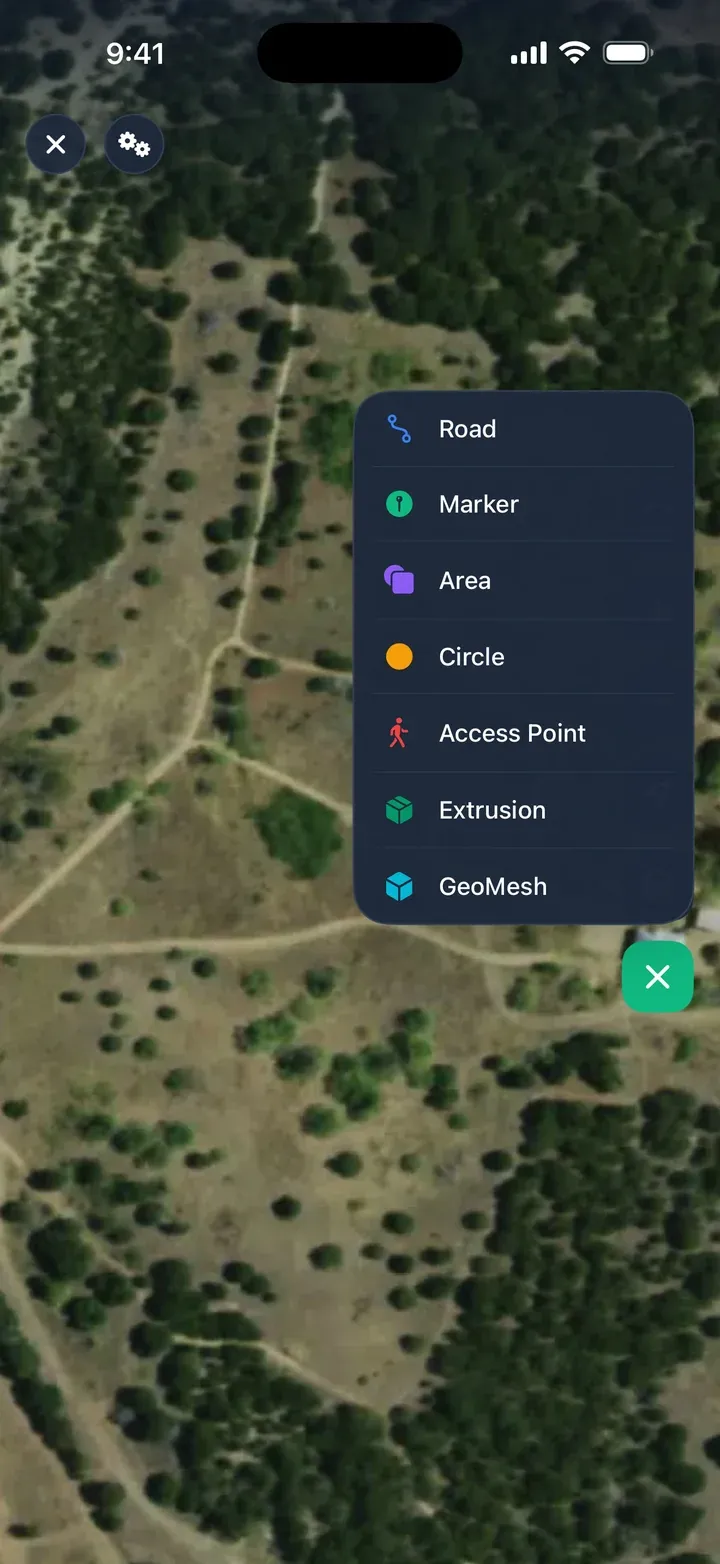
Tap the pencil button on the right of the map to open the editor, then tap the add-feature button and choose Area.
-
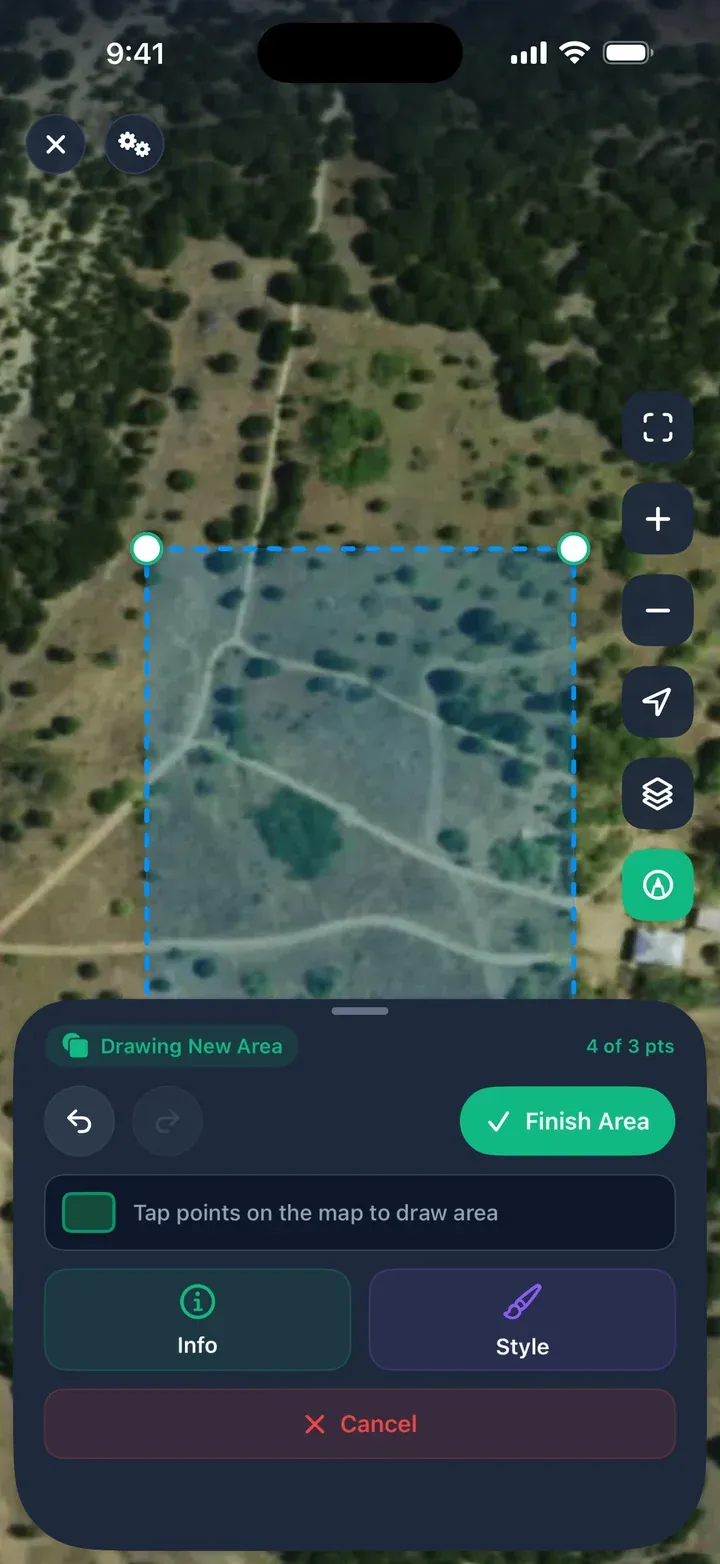
Tap each corner of the area on the map. After the first point, Undo and Redo appear in the sheet. Touch and hold to see a magnified view of where the point will land.
-
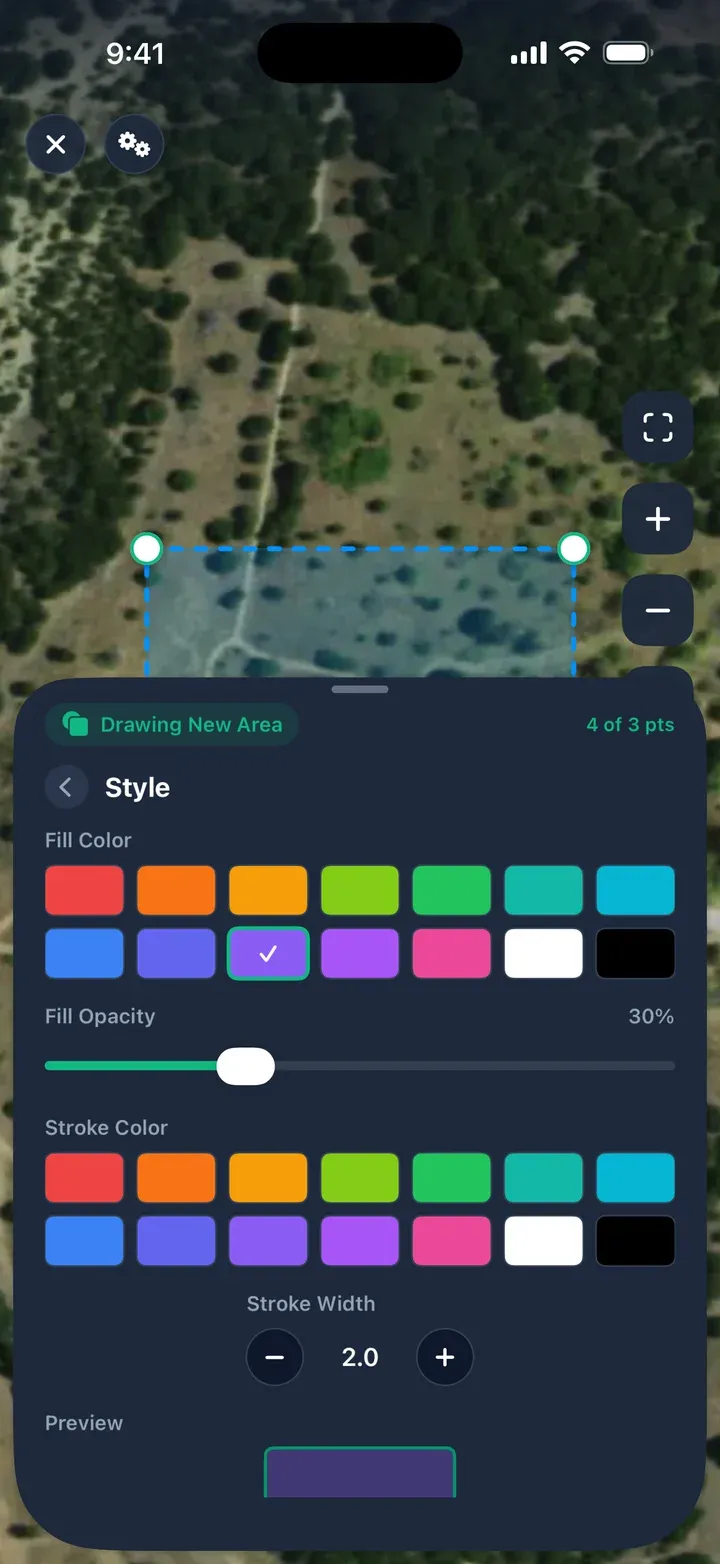
Optional: tap Style to pick the Fill Color, Fill Opacity, Stroke Color and Stroke Width. Each change applies as you tap it, and the swatch at the top of the sheet previews the look. Tap Info to add a name and description, then tap Save.
-
Tap the first point again, or tap Finish Area.
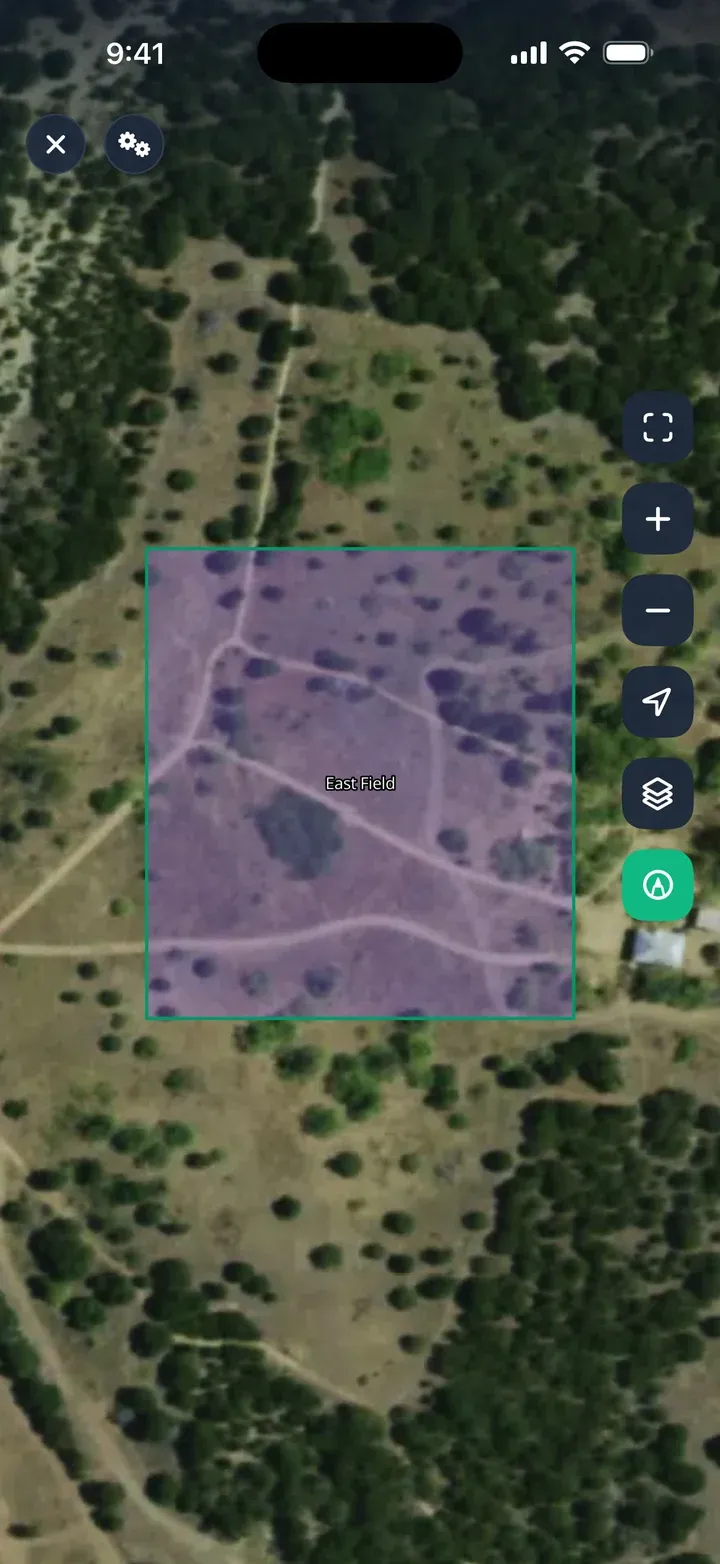
To stop, tap Cancel. If you have placed points, the app asks before discarding them.
-
Tap the pencil button (Edit map) on the right of the map to open the editor.
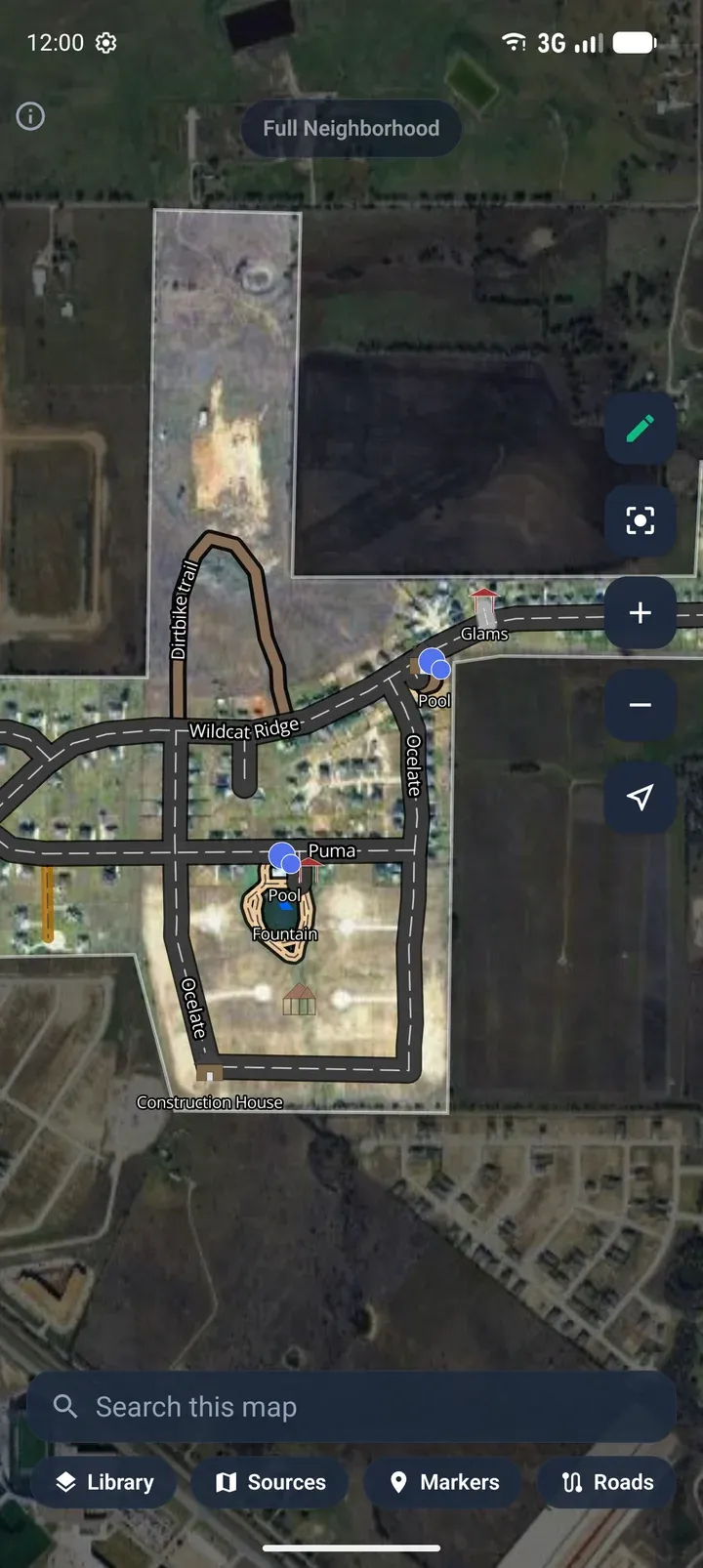
-
Tap the add-feature button at the bottom of the controls, then tap Area.
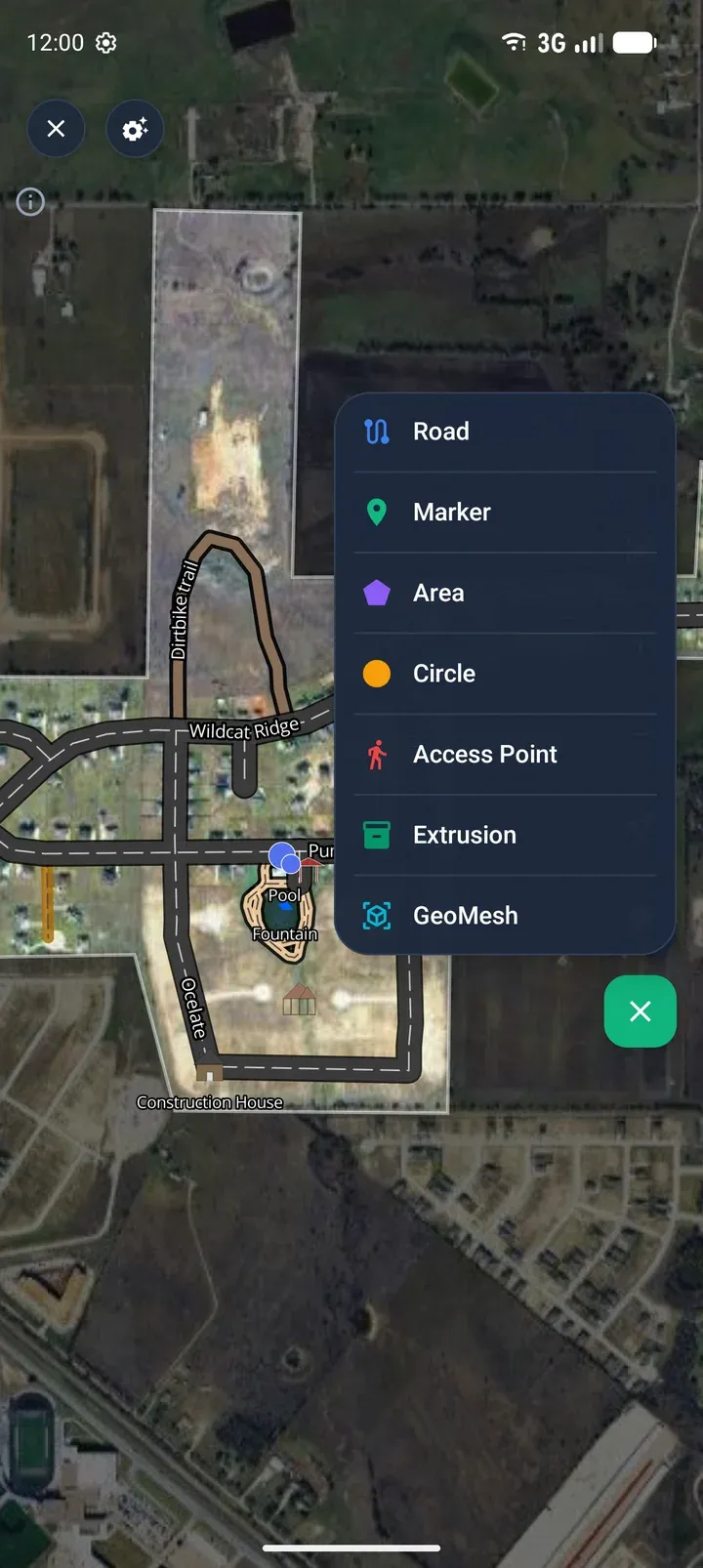
The Drawing New Area sheet opens. The swatch beside Tap points on the map to draw area shows how the new area will look.
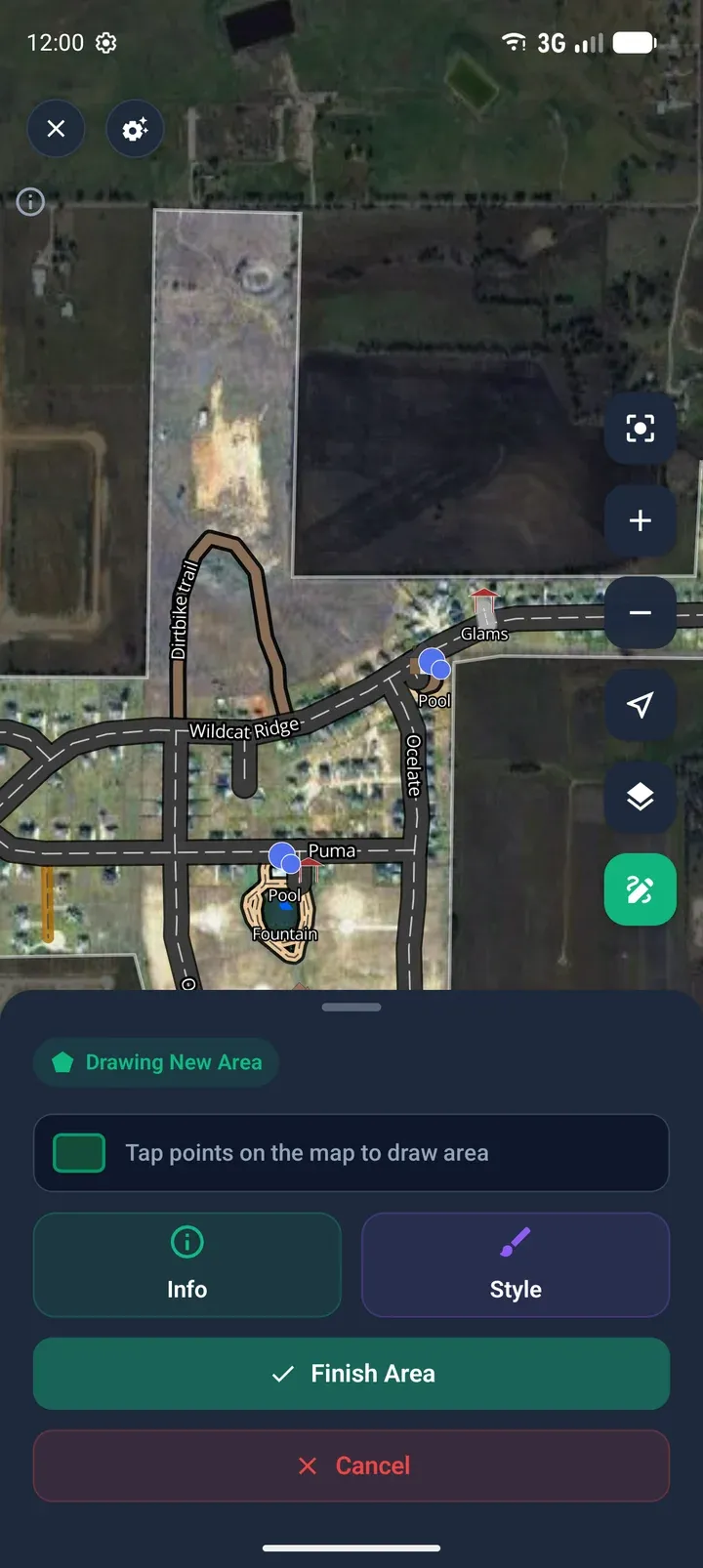
Tap where the first corner should go. -
Tap each corner of the area on the map. The point count shows at the top of the sheet, and Undo and Redo appear after the first point. Touch and hold to see a magnified view of where the point will land.
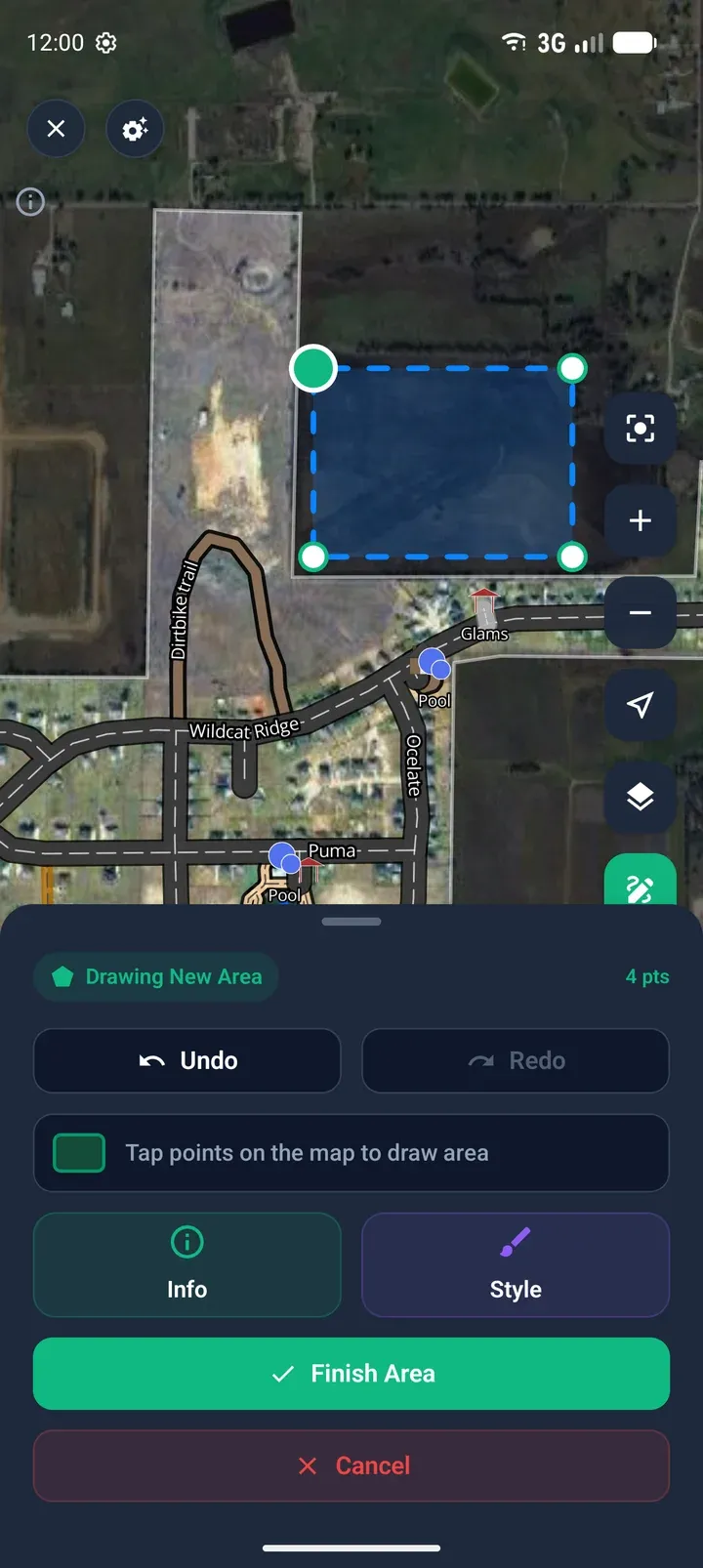
-
Optional: tap Style to choose the Fill Color, Fill Opacity, Stroke Color and Stroke Width. The map previews each change. Tap Save to keep it.
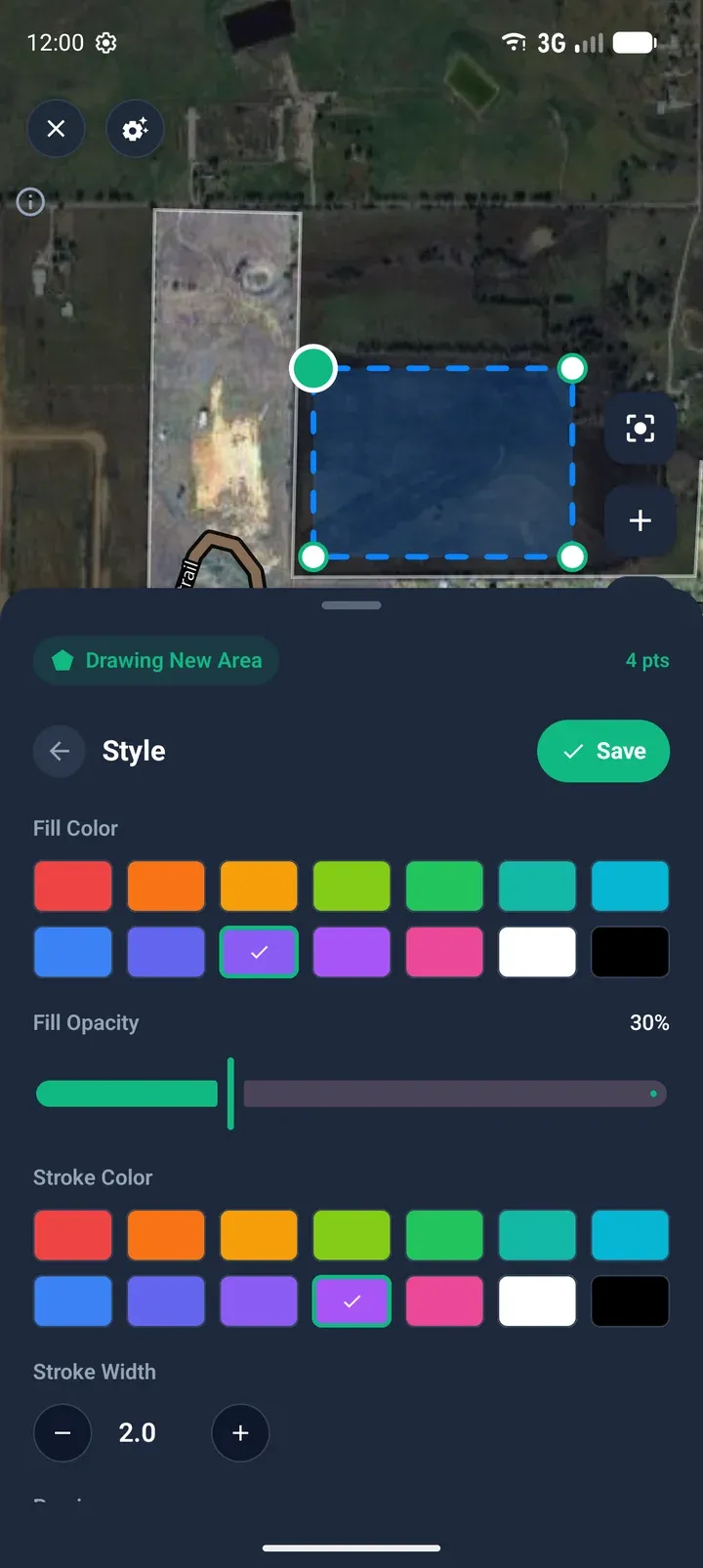
-
Optional: tap Info, type a name and description, then tap Save.
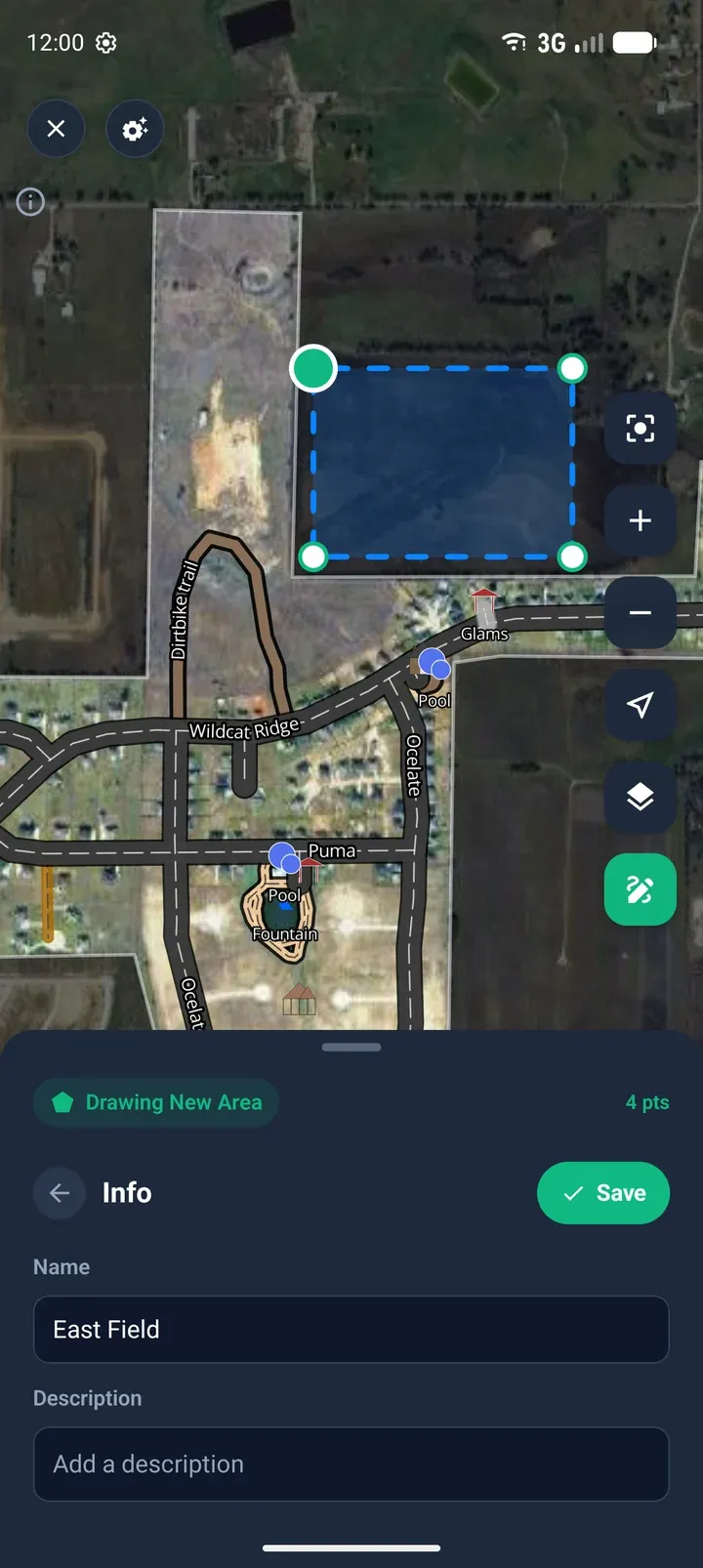
-
Tap Finish Area, or tap the first point again.
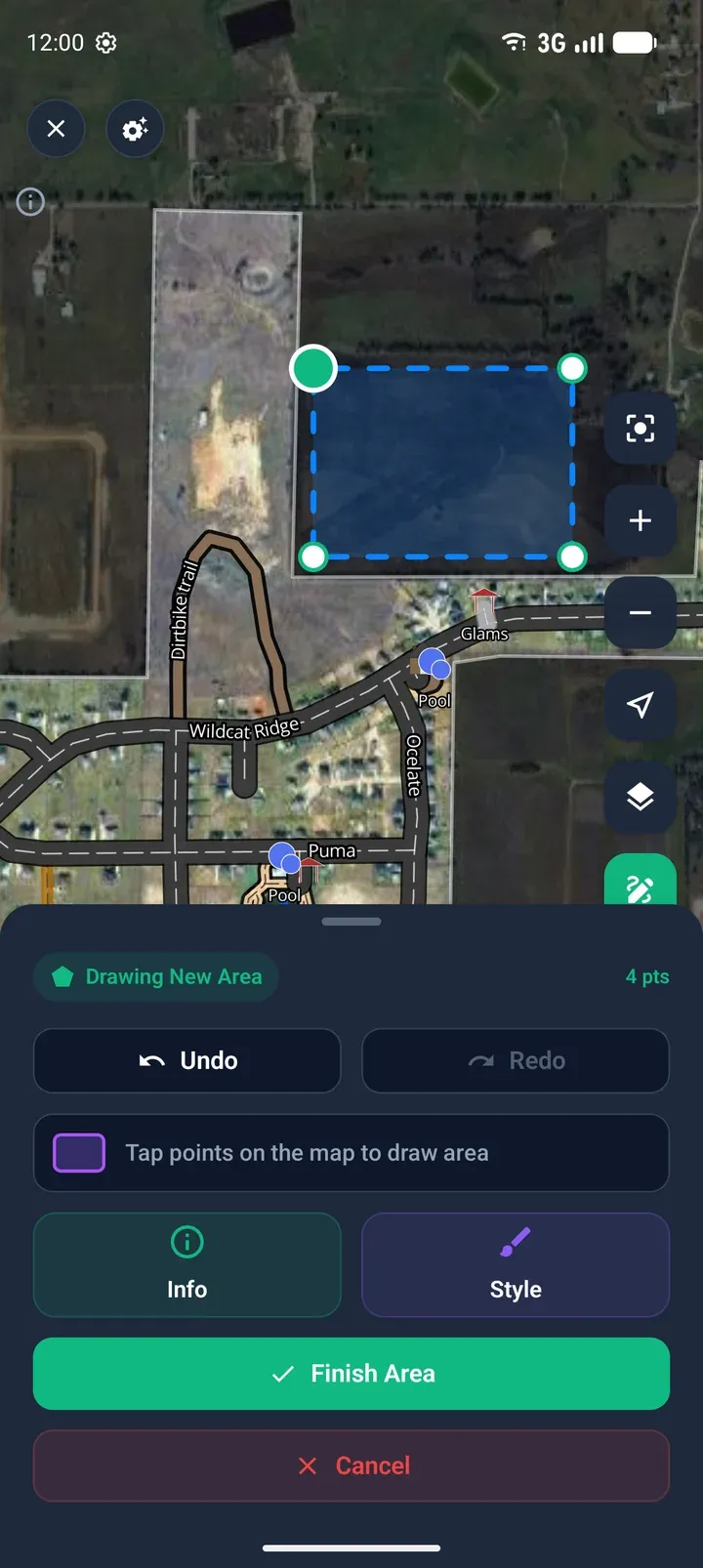
The area is saved and its name shows in the middle of it.
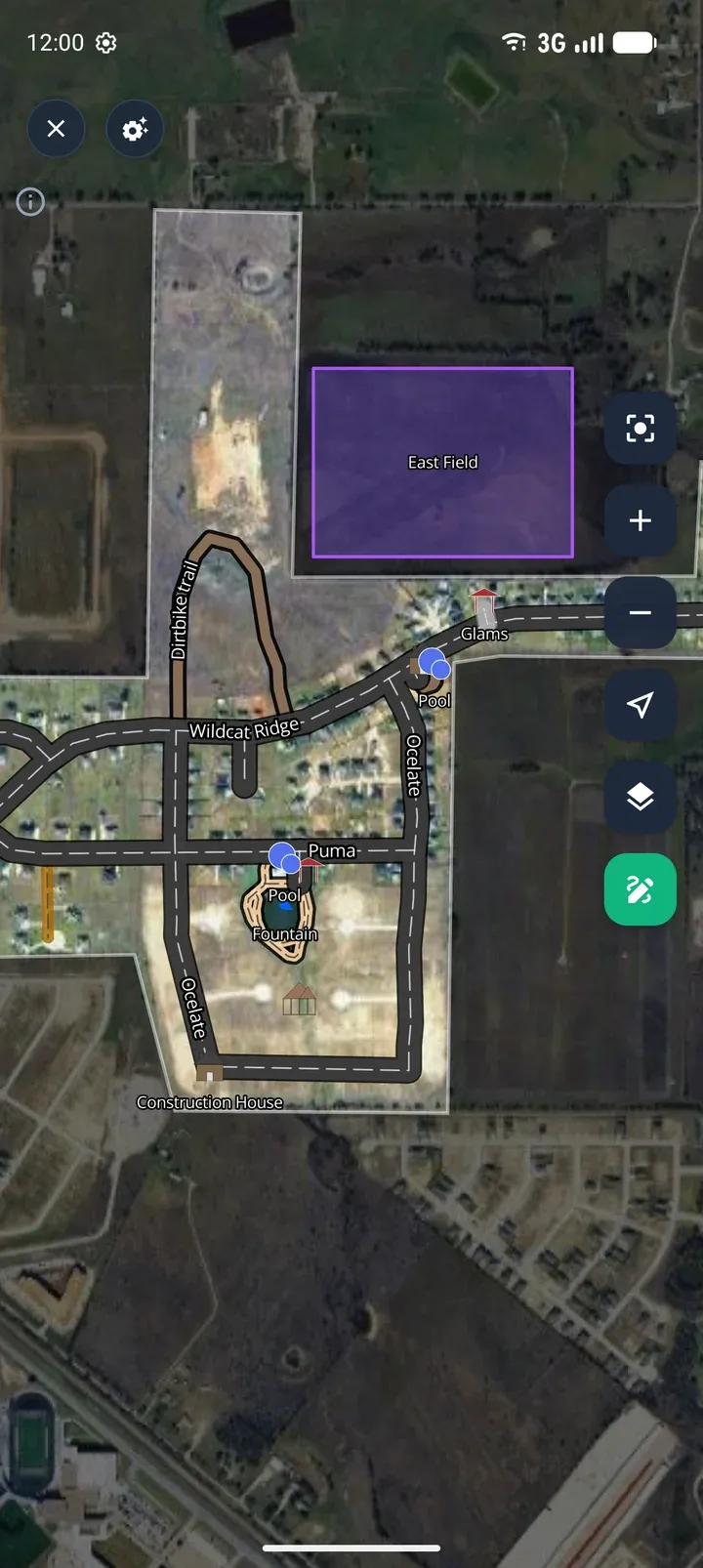
To stop, tap Cancel. If you have placed points, the app asks before discarding them.
Change an area’s name, style or shape
Section titled “Change an area’s name, style or shape”-
In the editor, click the area. A handle appears on each point, and the sidebar shows the area’s name and style.
-
Change the name or style in the sidebar. To reshape the area, drag a handle to move that point, or click the small dot halfway along an edge to add a point there.
-
Click the check mark button (Confirm Edit) on the map to save your changes.
-
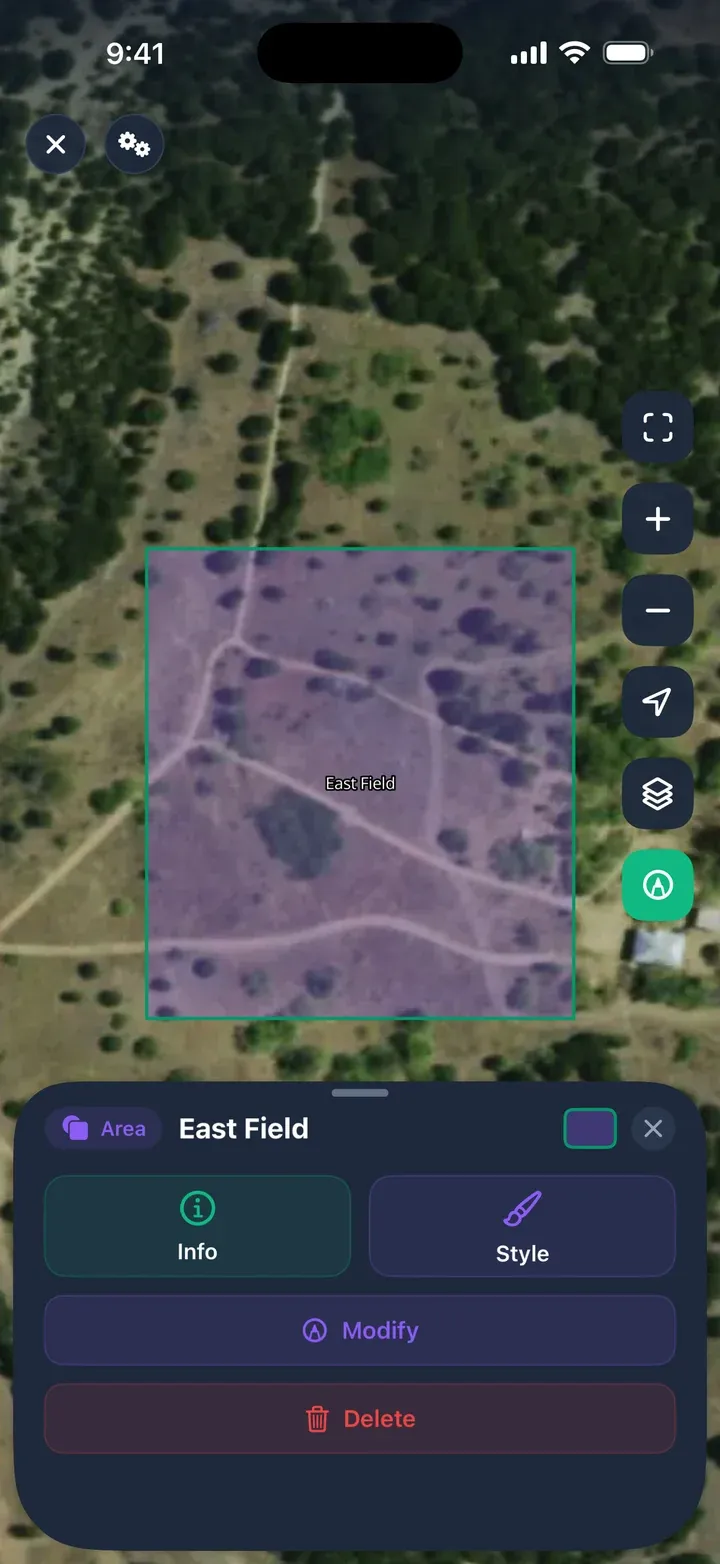
In the editor, tap the area. Its sheet shows Info, Style, Modify and Delete.
-
Tap Info or Style to change the name, description or look, then tap Save.
-
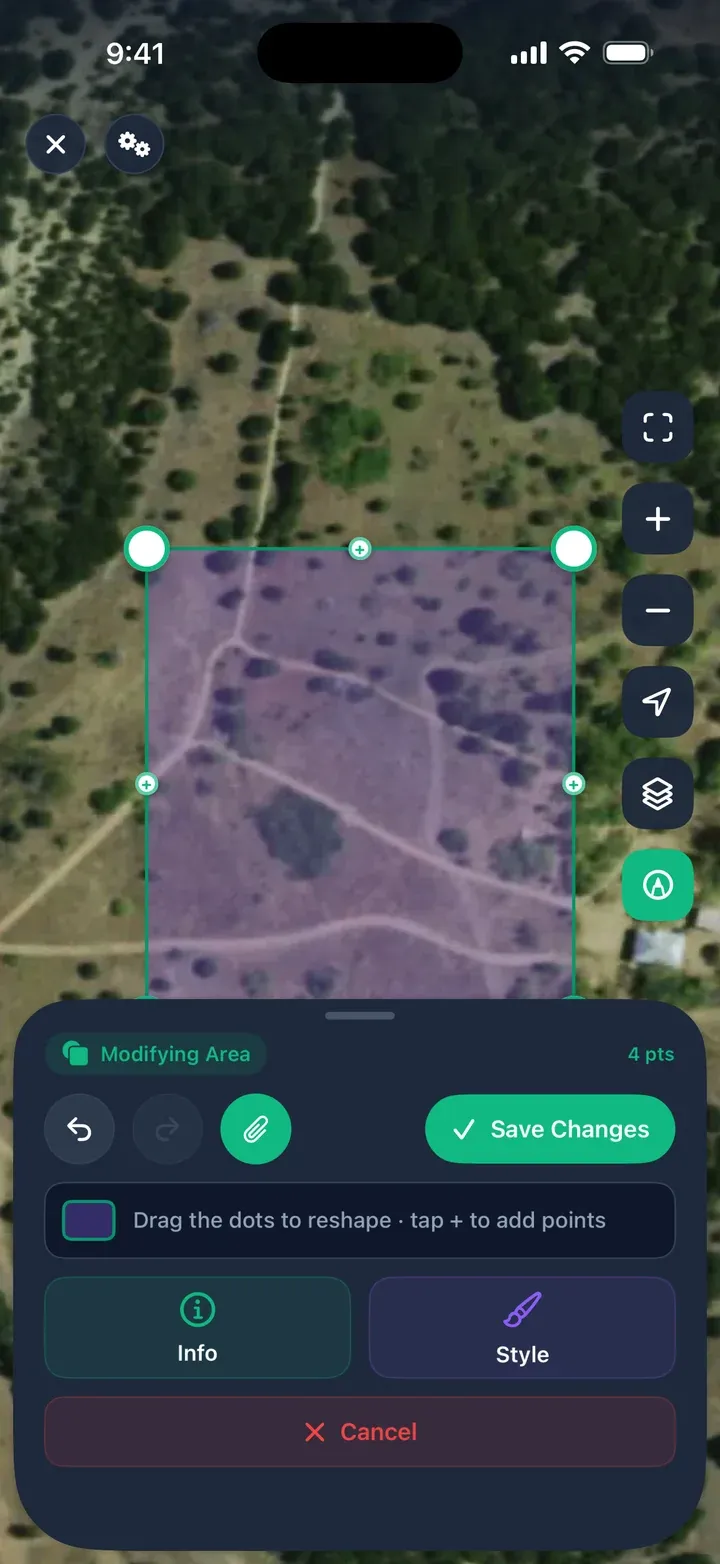
To reshape it, tap Modify. Drag a point to move it, or tap the + halfway along an edge to add a point. Turn on Snap to line points up with nearby roads. Drag the sheet down to see more of the map. The session keeps running, and you can bring the sheet back to finish.
-
Tap Save Changes.
-
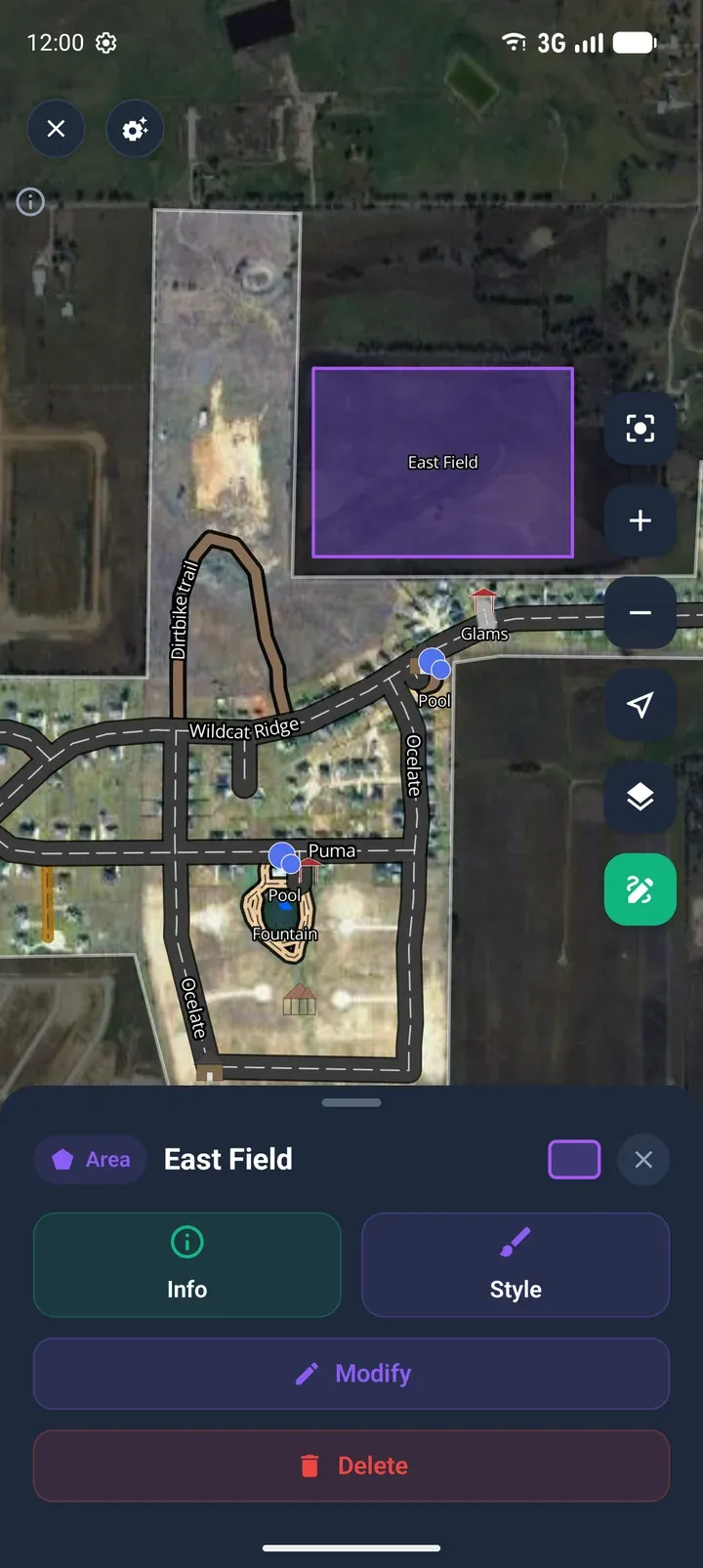
In the editor, tap the area. Its sheet shows Info, Style, Modify and Delete.
-
Tap Info or Style to change the name, description or look, then tap Save.
-
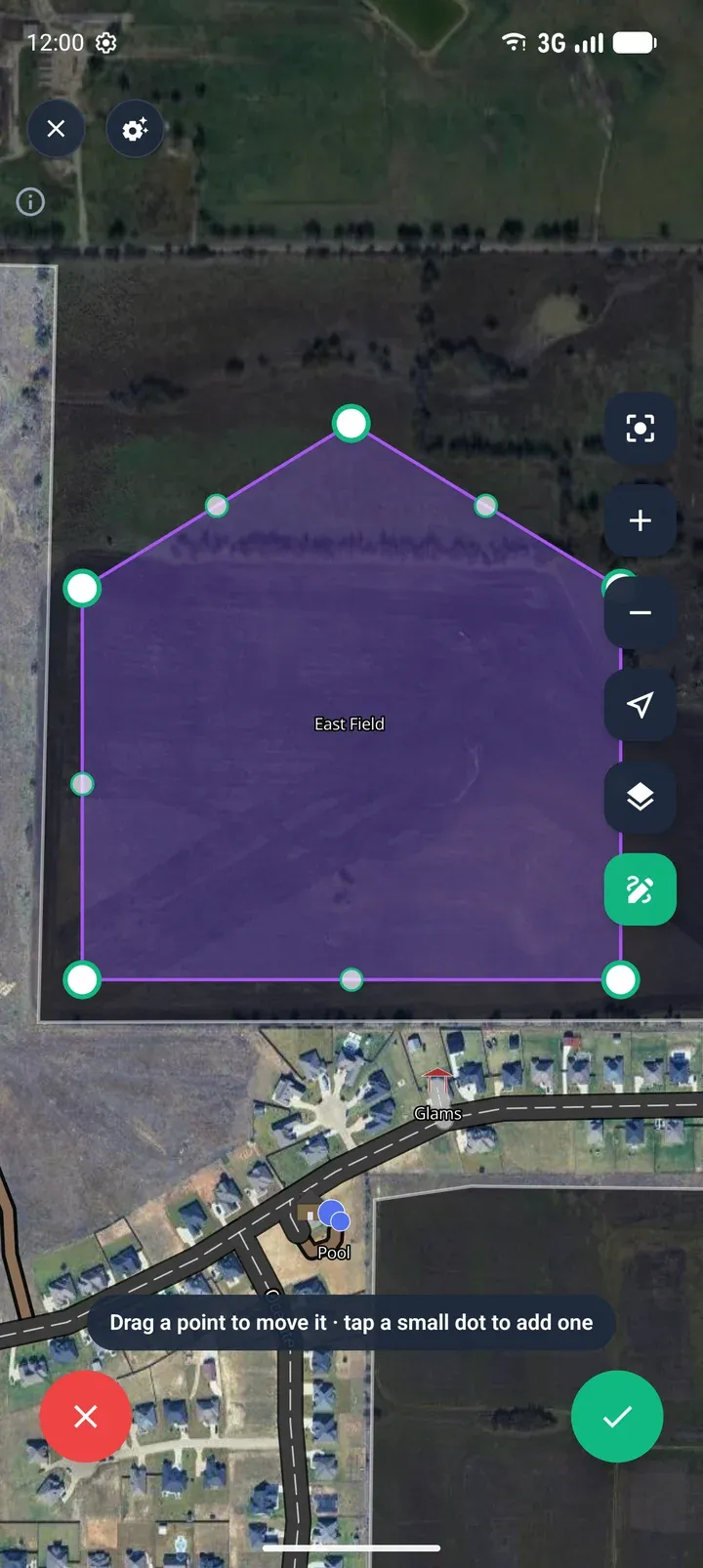
To reshape it, tap Modify. The map zooms to the area and shows a large handle on each point and a small dot halfway along each edge.
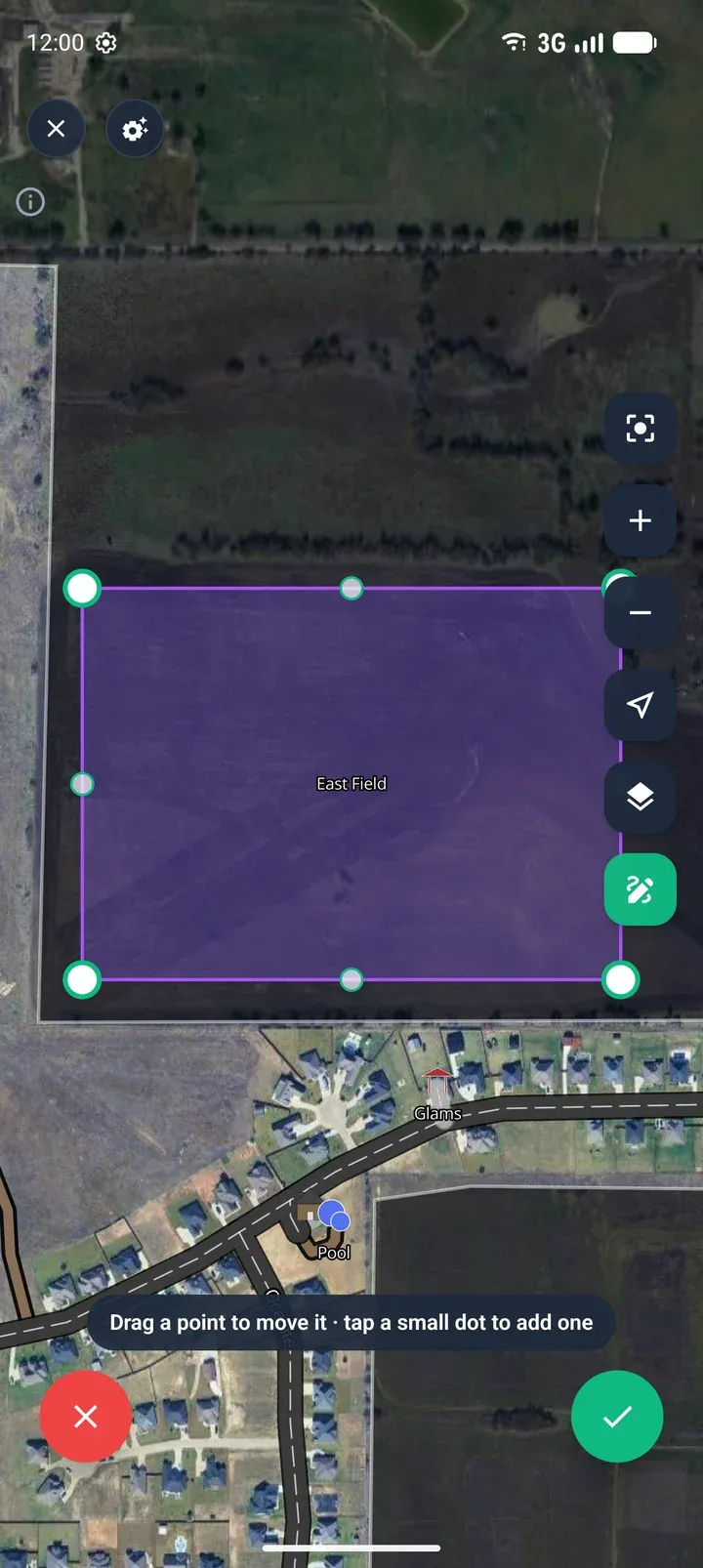
Tap a small dot to turn it into a point. -
Drag a point to move it. Tap a small dot, then drag it, to add a corner. Tap the green check mark to save, or the red cross to cancel.
Delete an area
Section titled “Delete an area”Select the area in the editor, click the trash button (Delete Feature) on the map, then click Delete in the confirmation.
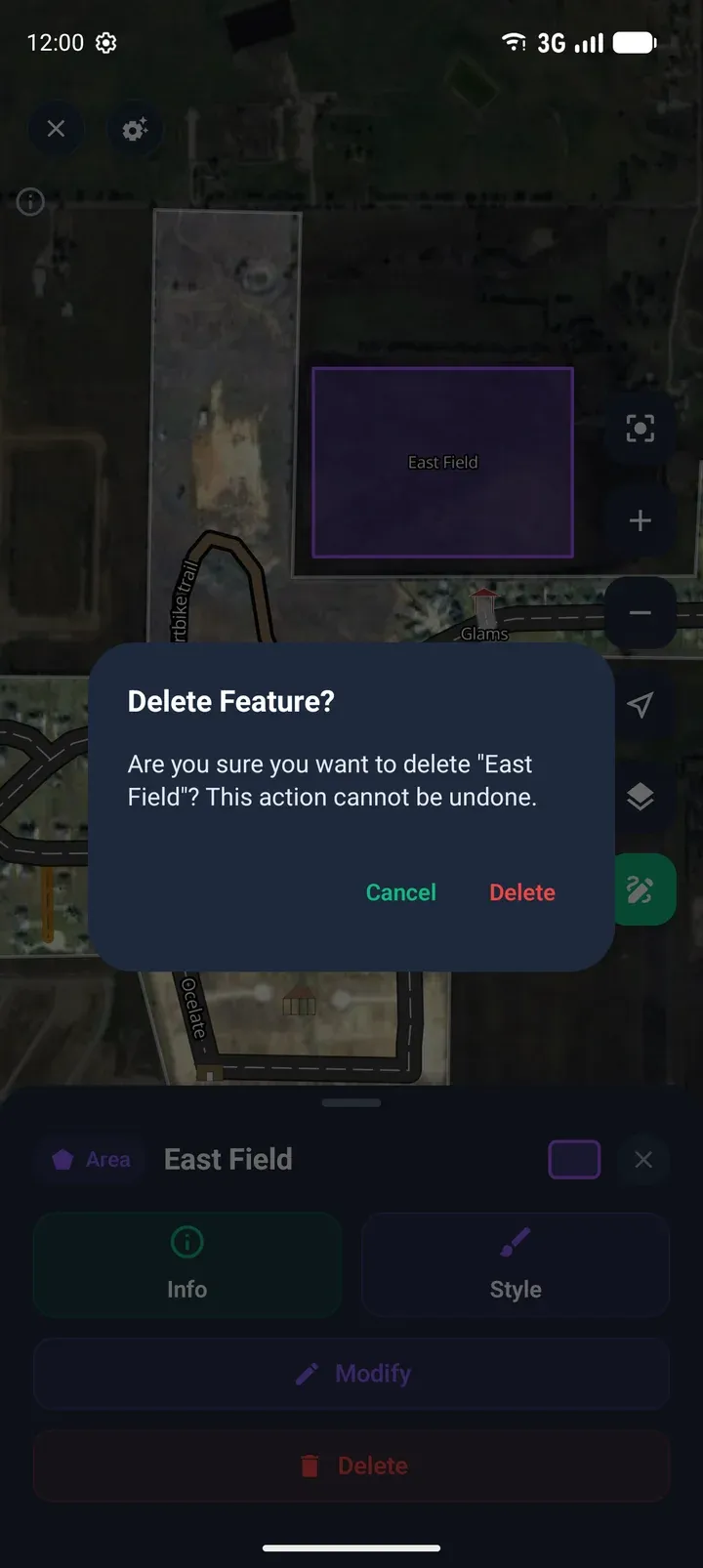
Tap the area in the editor, tap Delete, then tap Delete again to confirm. This can’t be undone.
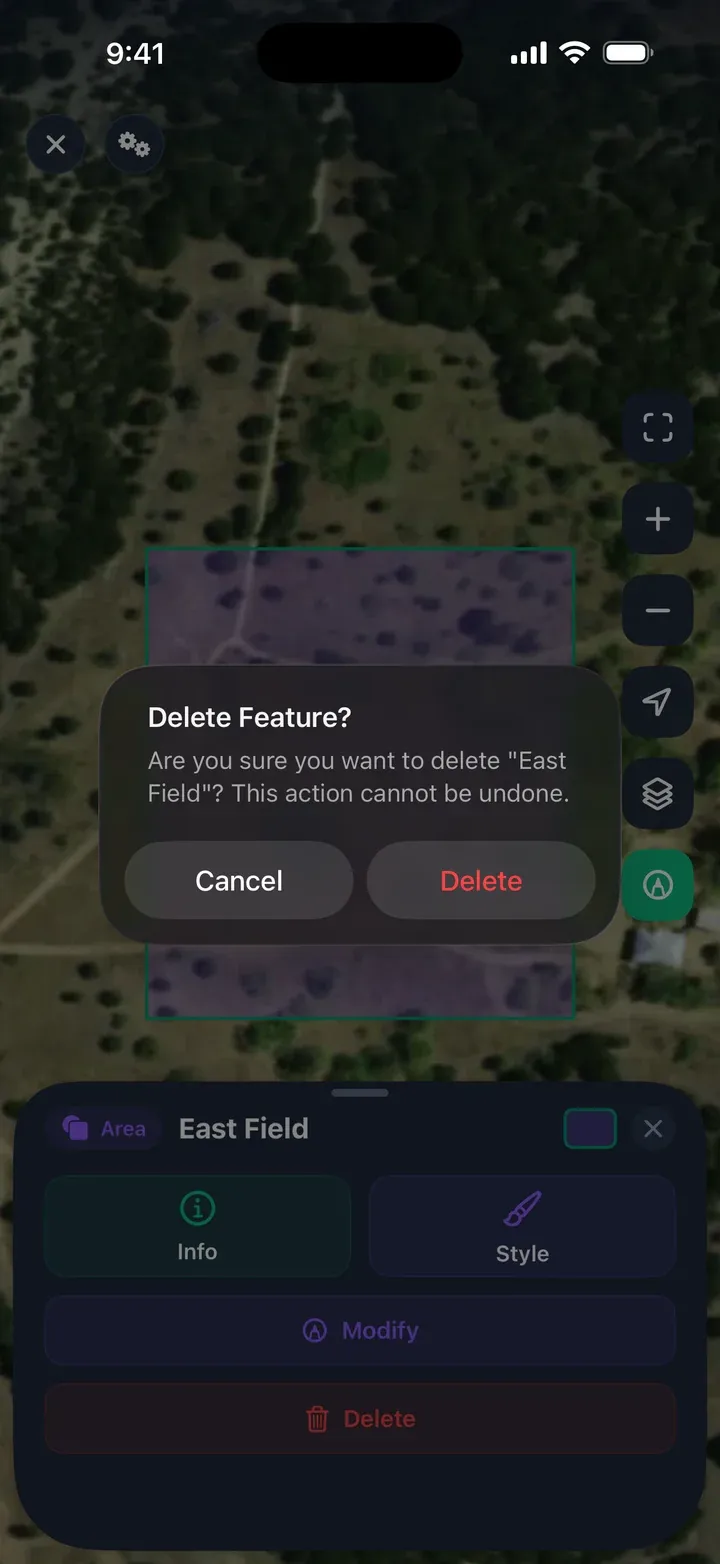
Tap the area in the editor, tap Delete, then tap Delete again to confirm. This can’t be undone.