Areas
- Web
- Available
- iOS
- Available
- Android
- Not yet
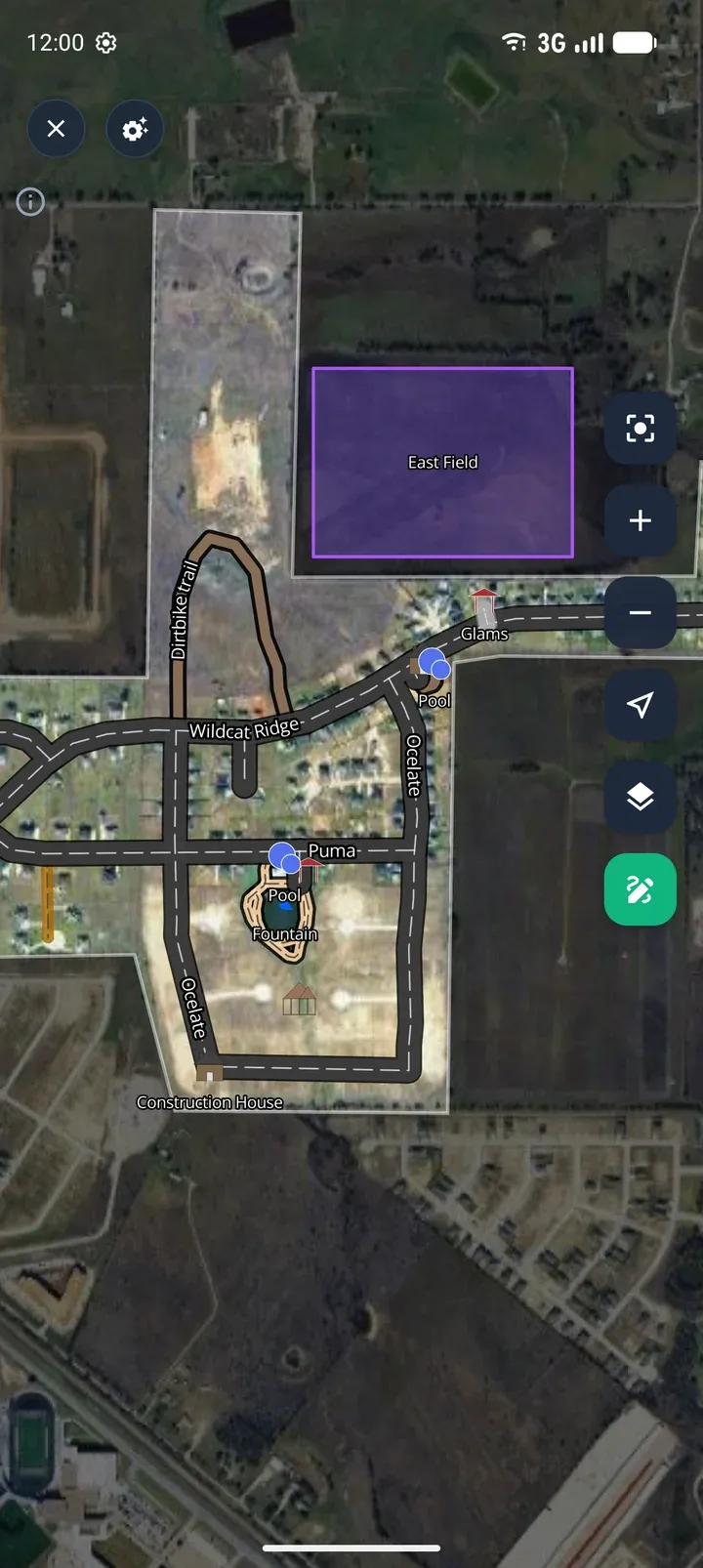
An area is a filled shape you draw on a map to mark part of a property: a pasture, a field, a pond, a building pad, or a zone to keep out of. You draw it by placing its corners, give it a fill colour and outline, and its name is shown in the middle of the shape on the map.
What an area is made of
Section titled “What an area is made of”| Part | What it does |
|---|---|
| Points | The corners of the shape, joined in the order you place them. An area needs at least three points. The shape always closes back to the first point. |
| Fill colour and fill opacity | The colour inside the shape and how see-through it is, from 0% (outline only) to 100% (solid). |
| Outline colour and outline width | The line around the edge. Some screens call this the stroke or border. |
| Name | Optional. It is shown in the middle of the area on the map and in the layers list. |
| Description | Optional notes, shown when someone selects the area. |
A new area starts as green at 30% opacity with a darker green outline 2 points wide. You can change any of these before you finish drawing, or at any time afterwards.
Drawing an area
Section titled “Drawing an area”- Start the Area tool in the map editor.
- Place points by tapping or clicking each corner in turn. The shape fills in as soon as it has three points, so you can see what you are about to save.
- Close the shape by tapping or clicking the first point again. In the iOS and Android apps, you can also press Finish Area.
You can set the name, description and style while you draw, so the area is saved just the way you want it. If you cancel after placing points, the apps ask before throwing them away.
Editing an area
Section titled “Editing an area”Select an area in the map editor to change it.
- Info changes the name and description.
- Style changes the fill and outline. The map previews each change before you save.
- Modify (on the web, just select the area) shows a handle on every point. Drag a handle to move that point, or tap the small dot halfway along an edge to add a point there.
- Delete removes the area after you confirm. This can’t be undone.
Saving and syncing
Section titled “Saving and syncing”On the web, changes save straight to your account. In the iOS and Android apps, a new or changed area is saved on your device first, so you can draw with no connection. It uploads to your account when you are back online. An area looks the same on every platform and on shared maps.
Differences between platforms
Section titled “Differences between platforms”The way areas are drawn and saved is the same everywhere. These are the differences:
| Web | iOS | Android | |
|---|---|---|---|
| Finish drawing | Click the first point | Tap the first point, or Finish Area | Tap the first point, or Finish Area |
| Take back the last point while drawing | — | Undo / Redo in the drawing sheet | Undo / Redo in the drawing sheet |
| Undo after saving | Undo on the map removes the last saved change, such as a whole new area | — | — |
| Right-angle snapping while drawing | Yes, with the right-angle button | No | No |
| Magnifier while placing or dragging a point | No (use the mouse) | Yes | Yes |
| Snapping to roads while reshaping | Follows the road Snap setting | Yes, with the Snap toggle | No |
| Colour choices | 10 preset colours | 14 preset colours | 14 preset colours |
| Outline width | 0–10 px slider | 0.5–10 in 0.5 steps | 0.5–10 in 0.5 steps |
Related
Section titled “Related”- Feature availability shows which map features each platform supports.